
Installation, Updating and Migration Guide
Detailed information on installing and updating the game to the latest version from PTB or other old versions.
Getting Started
Before you begin, please download the latest version for your operating system from the website https://clonehero.net.
You may also download the launcher for a simplified installation and update process.
Next, determine what version you currently have installed, as the steps to properly migrate may change depending on what version you are on and what Operating System you use. The easiest way to check the version is to open the game and look at the top right of your screen, the version will be listed there.

Installation And Updating Via Launcher
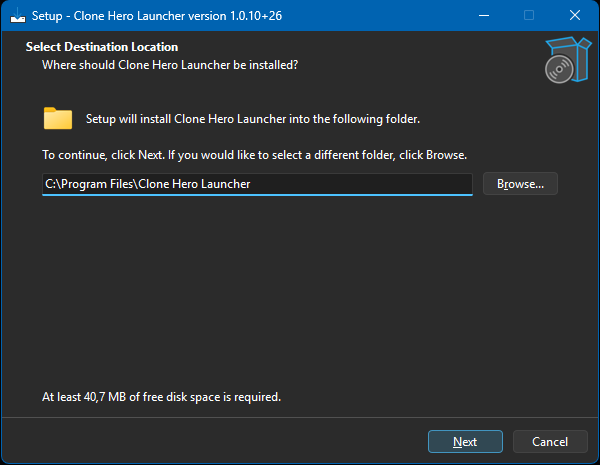
The launcher is available for Windows, Mac and Linux. On Windows, it's a simple installer that will only prompt you to select an installation path. This will not affect where the game versions themselves are installed as this can be determined in the launcher itself.
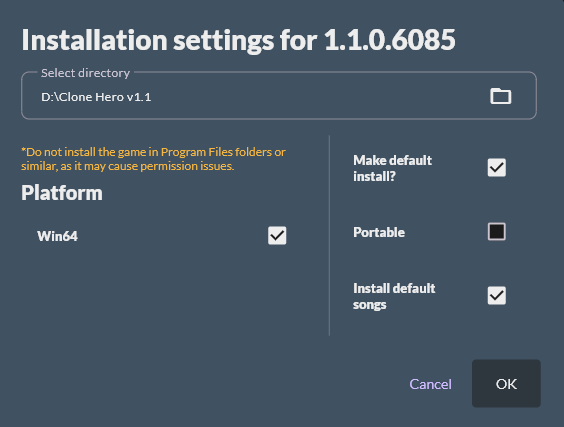
In the launcher, you may pick whichever version you'd like to install.install or update. You will be asked to select a few settings. You can install the game version anywhere you like, but you should avoid using protected directories. Protected directories include C:\Program Files, C:\Program Files (x86), C:\Users\[Your User]\Downloads, C:\Users\[Your User]\Documents and other user folders.
A recommended path would be akin to C:\Clone Hero , C:\Games\Clone Hero or similar.
You may tick the "Portable" setting if you are planning on storing the game on a portable drive and moving it between PCs. Doing this will avoid generating user files in Windows user folders and change a few defaults.
Manual Installation of V1.1
Windows
The Windows version of the game comes in an archive which can be extracted using system tools or apps like 7zip. You can extract it anywhere you like, but you should avoid using protected directories. Protected directories include C:\Program Files, C:\Program Files (x86), C:\Users\[Your User]\Downloads, C:\Users\[Your User]\Documents and other user folders. Certain features related to saving progress or settings may not function if this is done.
A recommended path would be akin to C:\Clone Hero , C:\Games\Clone Hero or similar.
Mac
Mac installation involves extracting the game app from the downloaded dmg into the folder you want it to reside in. This will automatically create the required files and folders for songs, custom backgrounds, and highways. No further steps required.
Linux
Extract the tar.xz file into a folder. On modern Linux distributions, you should just be able to open the archive and drag and drop the files to where you want them. Once extracted, you must adjust the app permissions to have execution rights. The Gnome file manager has the ability to set this by right-clicking on the file and opening its properties.
If you must use the terminal, then the following commands will allow you to extract into the same folder that the tar.xz was downloaded to:
tar -xf ./clonehero-linux.tar.xzTo set execution permissions In the terminal, run the following command within the folder the game files have been extracted to:
chmod +x ./cloneheroFinally, make sure that you have any necessary ALSA extensions for your audio system installed (such as pulseaudio-alsa or pipewire-alsa). Most distributions with GUI's such as Ubuntu Desktop will have these already configured for you.
Android
Android installation involves running the latest APK which will initiate the installation process. No further steps required.
Manually Updating on Windows
Updating from V1.0 and higher
Updating can be done via the new Clone Hero launcher. You may use the uninstaller bundled with V1.0 or uninstall it via the installed programs list on Windows without risking losing any of your user data, as it is stored elsewhere. It's not recommended to manually delete the game files as Windows clears important hidden entires when using an uninstaller. If you do not wish to use the launcher, you may get the game from a separate link on the Clone Hero website in a portable format.
If you wish to backup your data anyway, your default user folder for v1.00, where your default Songs and Custom folders are located, is Documents/Documents\Clone , while score saves and other hidden data Hero,Heroisare stored in %USERPROFILE%\AppData\LocalLow\srylain Inc_\Clone Hero. Press Win+R and paste the path to get there quickly.
The default typical install location for Clone Hero is Program Files. It's not recommended to reuse this folder after download v1.1 and/or uninstalling V1.0, as it's a protected folder. Please refer to "the "Manual Installation of V1.1" section above for installation instructions for V1.1.
V1.0 PTB versions and the OLD CH Launcher
This is legacy information relating to updating from Pre-V1.0 to V1.0!
The Windows version of V1.0 uses an installer, and your Custom and Songs folders, as well as your profiles.ini and settings.ini file, must be moved to a new folder which depends on the install option.
BEFORE UNINSTALLING THE LAUNCHER, MAKE SURE YOU MOVE YOUR SONGS, CUSTOM FOLDER, AND SETTINGS OUT OF THE GAME'S FILES! If you don't, you will lose them!
You may find the game files by pressing Win + R and typing in %APPDATA%\Clone Hero Launcher\gameFiles or copying the path into your File Explorer navigation bar and pressing the ENTER key.


Once you have located these folders and files in the Launcher, move them to the new custom content location according to where you installed the latest version to. Refer to the above installation section for information on where to move them depending on if you did a Typical or Portable installation.
0.23.2.2 and earlier
Versions 0.23 and earlier involved simply extracting the game data into the folder you wanted it to reside in. That installation directory also included a Songs and Custom folder. These have now moved according to how you installed version 1.0.
Before removing your old version, move your songs and custom content to the new directory, see the above instructions on where the correct directory is, depending on if you installed using the Typical or Portable method.
Manually Updating on Mac
To upgrade on Mac, simply delete the Clone Hero app and extract the new version. When updating from V1.0 to a newer version, your user files will not be touched.
In version 1.0 the folder that holds your Songs, Custom, and settings.ini has moved, compared to older releases. Previously, these files were stored in ~/Library/Application Support/com.srylain.CloneHero and starting with version 1.0 they are now in ~/Clone Hero. You must move any files you wish to preserve after the update.
The tilde ~ symbol means "Home Directory." You can reach this location either by using the menu toolbar and selecting Go > Home or by pressing Shift-Command-H
Manually Updating on Linux
To upgrade on Linux, delete the following files and folders from your existing game folder.
clonehero_Data
clonehero
Then extract the new files into the game folder.
In version 1.0 the folder that holds your Songs, Custom, and settings.ini has moved. You must move any files you wish to preserve after the update.
Scores and Profiles
You must move your scores and profiles to the new directory ~/.clonehero Previously, these files were stored in ~/.config/unity3d/srylain Inc_/Clone Hero.
Songs, Custom Content, and Settings
You must move your Songs folder, Custom Content folder, and settings.ini file to ~/.clonehero as well. Previously, these files were stored in the installation directory of your old version.
Show Hidden Files and Folders
Hidden folders such as .config and .clonehero folders may be hidden by default. You will need to enable hidden files and folders in your file manager. On Ubuntu Desktop, to see all hidden files in a folder, go to that folder and either press the menu button in the top-right corner of the window and select Show Hidden Files, or press Ctrl + H. In the terminal, you can view hidden files and folders using the ll alias command or using the full ls -alF command.
The tilde ~ symbol means "Home Directory." The Clone Hero directory can be expanded to /home/<your username>/.clonehero
Updating on Android
To upgrade on Android, download and run the new .apk. If you get an error about package incompatibility, you will need to uninstall the old version and install the new one. Be sure to back up your scores, profiles, settings, etc. beforehand, or else you may lose them!
In version 1.1 the folder that holds your Songs, Custom, and settings.ini has moved. Previously, these files were stored in Internal Storage > Clone Hero and they are now in Internal Storage > Documents > Clone Hero. You must move any files you wish to preserve after the update.
If you are on Android 11 or later, and have played pre-v1.0 Clone hero, you will have to use a PC to access the Android > Data folder to get your old user files as this folder became restricted and is inaccessible through your phone's file browser.